Home-made Art Store on TV
A Samsung The Frame shows art when it is switched off. Samsung sells a subscription for that; this Art Store is home-made. On the phone you search the collections of five museums, the server turns the work into a 3840 × 2160 image and puts it on the TV with one tap. Your own photos and AI images work too. Claude Code built it in two days, from the first test script to an app on the home screen.
- Museums
- 5
- Image on the TV
- 3840 × 2160
- Runs on
- Home server
- Languages
- NL and EN
- Build time
- 2 days
From museum to TV
Everything that touches the TV stays within the home network: no Samsung account, no cloud, no root on the TV. Only the museum searches and the AI requests leave the house.
What happens when you pick a work
-
1
Searching five museums
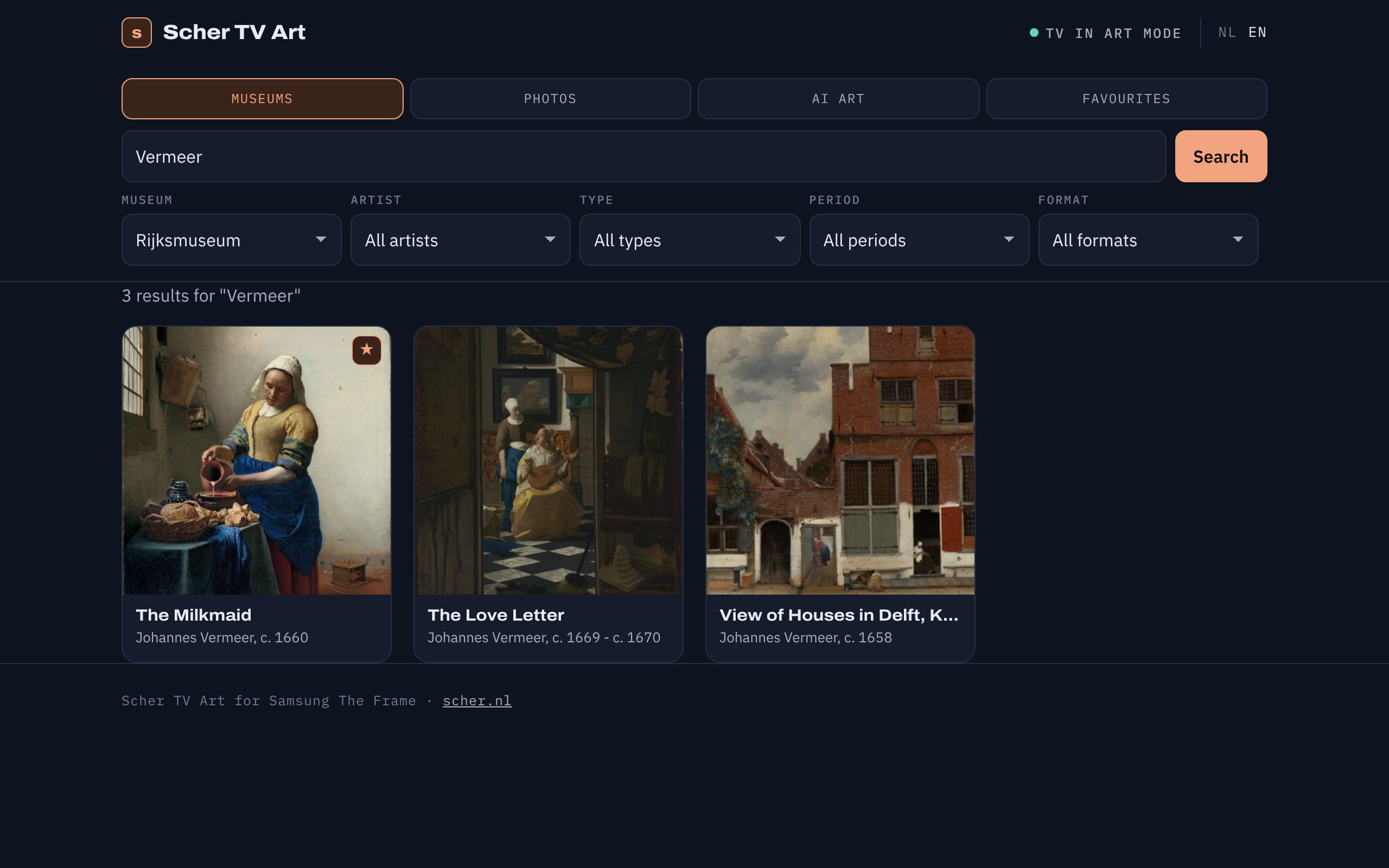
MuseumsPick a museum and search by artist or title, or just pick filters: type, period, subject and format. With the format "fits the TV exactly" you only see works in 16:9. Only public-domain works come up.
RijksmuseumArt Institute of ChicagoMetropolitan MuseumNational Gallery of ArtCleveland Museum of Art -
2
Choosing how it appears on screen
AppThe preview shows the work in a 16:9 TV frame. Choose "fit with border" with a dark, black, light or white border, or "fill screen", and the server crops the work. A tap on "About this work" gives a short explanation, written by AI.
-
3
Fetching and converting to 4K
ServerThe server asks the museum for an image just large enough for 3840 × 2160 pixels, within what the museum allows. It is then put into the TV format, with a border or cropped.
IIIFPillowJPEG 3840 × 2160 -
4
To the TV
The FrameThe server sends the image through the TV's Art Mode connection, within the home network, and shows it right away. The app shows the progress: fetching, converting, uploading. Then the server cleans up by itself: the newest 20 images from this app stay on the TV.
samsungframetvWebSocketArt API -
5
Keeping
ServerEvery work sent and every favourite is then stored on the server, about 4 MB per work. That way it can go to the TV again later, even when the museum is unreachable.
Your own photos and AI art
Your own photos on the TV
Pick photos on the phone. They go to the home server, not to the internet, and again you choose: fill the screen or with a border.
AI art from a description
Describe what you want to see. "Fast" makes a 2K image, "Pro" a 4K one. The image is always requested in 16:9, so it fits the TV. A daily limit of 20 images keeps the costs in check.
A photo in a style
Add a photo and describe the style, for example as an oil painting or as stencil street art. The AI turns it into a new image.
Adjusting with one sentence
"Make the sky more dramatic" or "zoom in on the fox": you adjust a generated image with one sentence. If the model returns the image almost unchanged, the server asks once more, more firmly.
Prompt helper
A few words become a rich description with subject, style, colours and composition, in the language you typed.
On the home screen
On the iPhone the Art Store sits on the home screen as an app, in the style of this site and in Dutch or English.
What differed per museum
| Museum | What stood out |
|---|---|
| Rijksmuseum | Works without an API key. The data comes as Linked Art; the images via IIIF, large enough for 3840 pixels wide. |
| Art Institute of Chicago | Images only come through with its own AIC-User-Agent header; otherwise the request is blocked. |
| Metropolitan Museum | The old search endpoint disappeared on October 1, 2026, so the app uses the new version. |
| National Gallery of Art | Has no search API. So the server builds its own index once from the open dataset and searches that. |
| Cleveland Museum of Art | The largest image can be a 500 MB TIFF. So the app takes the print version, which is more than large enough. |
What it is made of
App
- One HTML page with search, filters, detail sheet and progress
- NL and EN, installable on the home screen
Server
- Python with Flask, in Docker on an Ubuntu home server
- Starts again by itself after a reboot
TV
- samsungframetv: The Frame's Art Mode connection over WebSocket
- Upload, display and clean-up, without changing anything on the TV itself
AI
- Gemini image models for Fast (2K) and Pro (4K)
- A Gemini text model for explanations and the prompt helper
- The key lives only on the server
Building
- Claude Code wrote the code in 15 pull requests on GitHub
- Testing and deploying on the server via Remote Control
What the Art Store does and does not do
- Only public-domain works. A work by a living artist, such as Banksy, is therefore not possible.
- The TV is only controlled within the home network. Nothing from the TV goes onto the internet.
- Your own photos stay on the home server.
- The Gemini key lives only on the server, never in the app or the code.
The demo
The demo is the same app, but without a server, TV or AI behind it. It works with a fixed sample set of museum works that the real app fetched.